Scorecard Properties in BSC Designer
The "Document properties" command in "File" menu gives an access to additional scorecard customization settings.
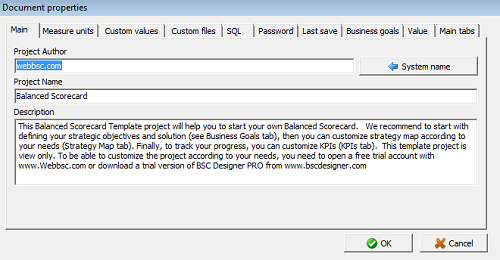
Main Tab
The Main tab contains information about the balanced scorecard:
- Scorecard author
- Scorecard name
- Scorecard description
Measure Units Tab
- Use "Set default" button to configure measure units that will be applied to new indicators
- Use "Import" button to import measure units from other scorecard
- Use "Export" button to export measure units to other scorecard.
- Use "Add" button to create new measure unit.
- Use "Custom text fields" to define qualitative measurements.
Custom values & files tabs
These two tabs help to customize reports:
- Using custom values, if it is needed to insert text in the
report;
- Using custom files, if it is necessary to add some files to
the report.
SQL Tab
The SQL tab contains settings that are used when BSC Designer access the external data with SQL indicators.
Password Tab
Use text fields on the "Password" tab to assign password for reading and writing.
Value
Define on this tab:
- How baseline is updated in BSC Designer
- Display settings for leading and lagging indicators
- The default value for the inheritance