Introduction to the scorecard and KPIs calculations:
- Terms and definitions: metric, indicator, KPIs, scorecard
- Qualitative and quantitative indicators
- How to normalize metrics?
- How to use metric’s weight for calculations?
- How to calculate the leading and lagging indicators, goals’ performance, and total scorecard index.
What is The Right Term: KPI, Indicator or Metric?
From a business viewpoint, it doesn’t make sense to call something “KPI” until a business context is defined.
A safer alternative for the KPI term would be “indicator” or “metric.”
Still, in this article, I’ll be often using the “KPI” term.
The reason is simple:
- The KPI term is more popularized and doesn’t require much explanation.
If you plan to develop a performance measurement system in your organization, it is important to reach an agreement about the terms and their meaning. I would recommend this article, where the terms are discussed in some more detail.
From an Indicator to a Scorecard
In the business domain, an indicator is a numerical value that is linked to some kind of process or business objective.
Its primary goal is to show a number that can give us an idea about the current performance of the process or business objective.
A scorecard is a set of indicators grouped according to some rules:
- First, indicators are normalized (according to their properties like measurement scale and performance formula).
- Normalized indicators are presented in a hierarchical structure where they contribute to the performance of their containers.
- The degree of contribution depends on the weight of the indicator (its relevant importance).
- Recursively, we move from indicators to the higher levels of hierarchy, where containers contribute to their containers until we finally get to the root of the hierarchy.
- We can stop on any level of hierarchy and look at the performance data, for example, the performance of a specific container/goal.
- Finally, when we get to the root of the hierarchy, we can calculate the scorecard total performance or scorecard index
A scorecarding software like BSC Designer will do all calculations automatically.
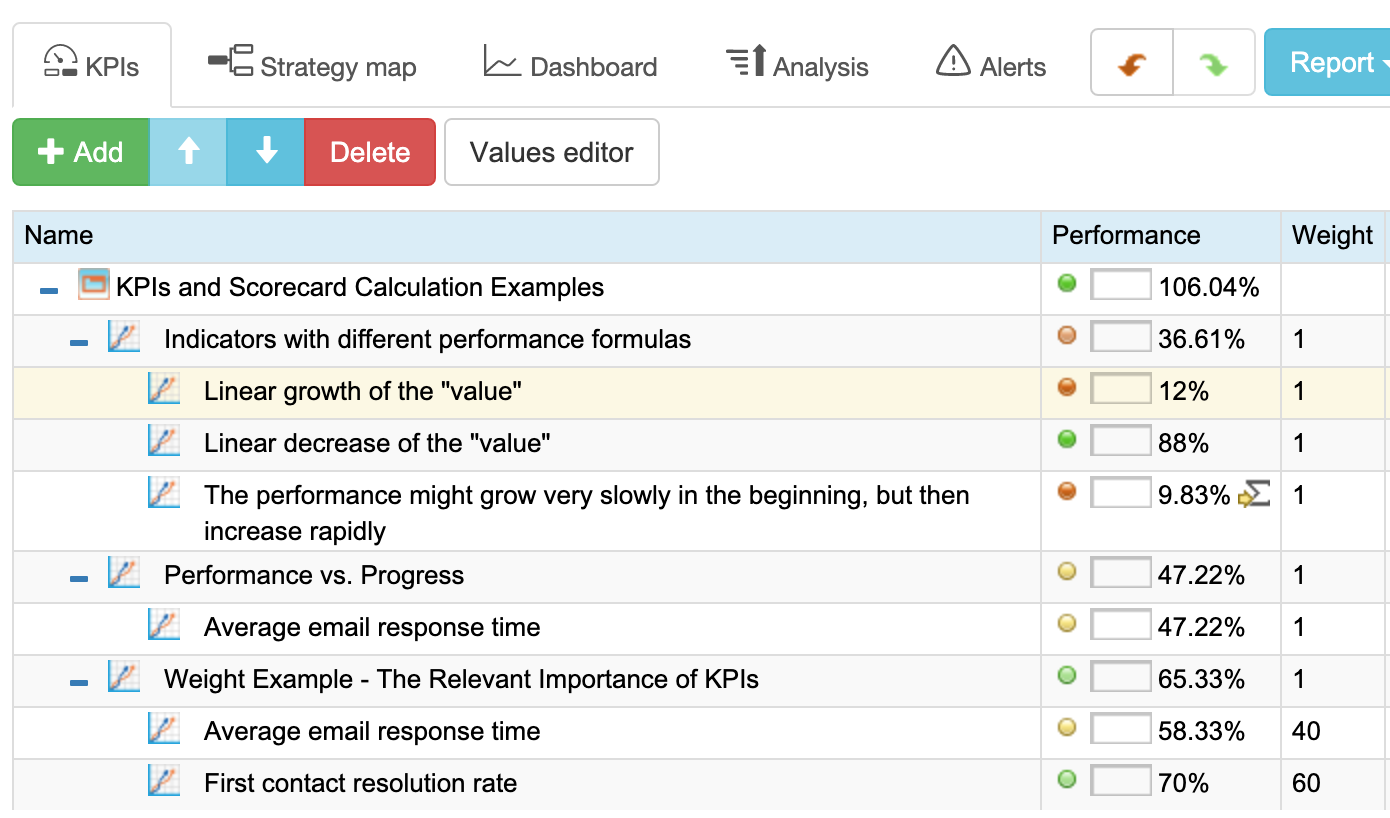
On the screenshot, you can find a hierarchical scorecard that is calculated using the values and scales of various types of indicators.
Below, we will discuss mathematical formulas used for calculation.
 Calculation Examples.
Let’s review these ideas from the basics to the calculation of the total performance index.
Quantitative Indicator and Measure Units
Let’s start with simple examples of indicator values:
“$530” Indicator
Let’s break it into parts:
- “530” is a numeric value, and
- “$” is a measure unit
“20 hours/week” Indicator
Let’s break it into parts:
- 20 hours/week – “20” is a numeric value, and
- “hours/week” is a measure unit
Qualitative Indicators – How to Quantify Them
Before, we agreed that an indicator is a number.
What if an indicator doesn’t have a numeric value? In this case, we are talking about qualitative indicators.
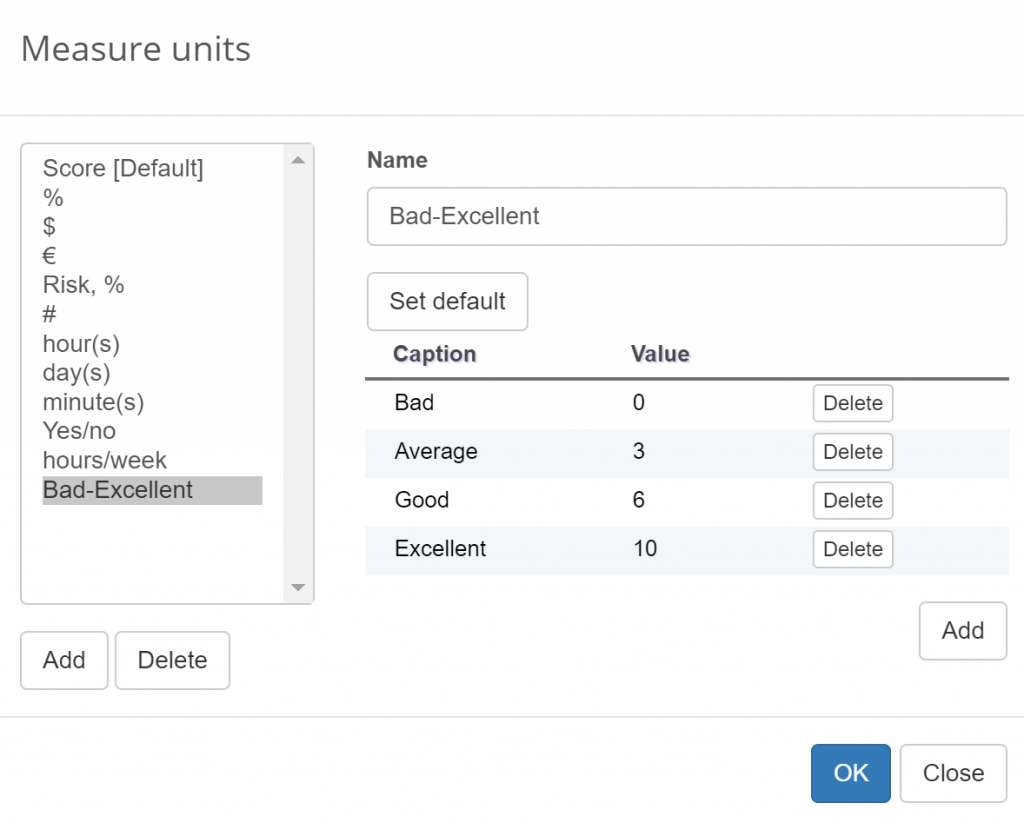
Qualitative indicators are often used in surveys. Instead of confusing the participants of the survey with questions like “on a scale from 1 to 10, how do you rate …?” companies prefer to give natural-choice options – “Bad, Average, Good, Excellent.”
Before we can continue using these qualitative answers, we need to quantify them. For example, we can agree that:
- “bad”=0
- “average”=3
- “good”=6
- “excellent”=10
We’ve mentioned surveys as a source of data for the scorecard, and I believe you will use it as well. If you are looking for more ideas about making surveys more effective, I can recommend this article for you.
Normalization: The Need for Normalization of the Indicators
Each indicator has its own measurement units. In the previous section, we had “hours/week” and “$.”
How can we compare, for example:
- “Training effectiveness” measured as “X hours/week”
with
- “Training budget” measured in “$”?
We cannot!
At least, we cannot compare them directly.
To make indicators comparable, we need to put them on the same (“normal”) scale: we need to normalize them.
To normalize metrics, we need to come up with a mathematical function that will put various indicators on the same scale. I’m talking about the performance function for an indicator.
Normalization: Putting Indicators on Scale
What actually does the value “$530” mean?
Is it a high value or low value?
We cannot answer these questions until we have a measurement scale.
Let’s create this scale. We will put values on the [min … max] scale:
- Min – means the minimal possible value of an indicator
- Max – means the maximal possible value of an indicator
For example:
- If min=$0 and max=$600, then we can say that an indicator with the value $530 actually tells us that we are doing well!
Normalization: Calculating Performance
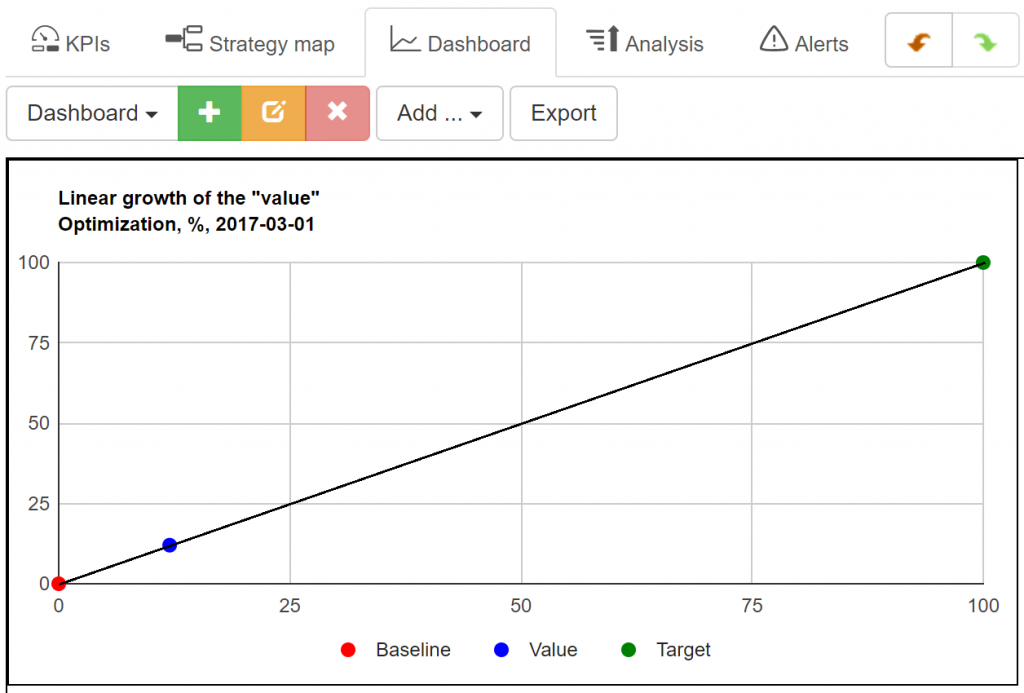
The performance of an indicator can be calculated using linear function:
- Performance (Value), % = ((Value – Min) / (Max – Min)) * 100%
In our example, the performance will be (530 – 0) / (600-0) = 88%
Calculation Examples.Normalization: Variety of Performance Functions
The formula that was introduced above is a linear maximization function.
With a linear growth of the “value,” the performance will also grow linearly.
Example: “First contact resolution rate.” To increase the performance, we need to resolve more problems (higher value of the indicator) during the first call.
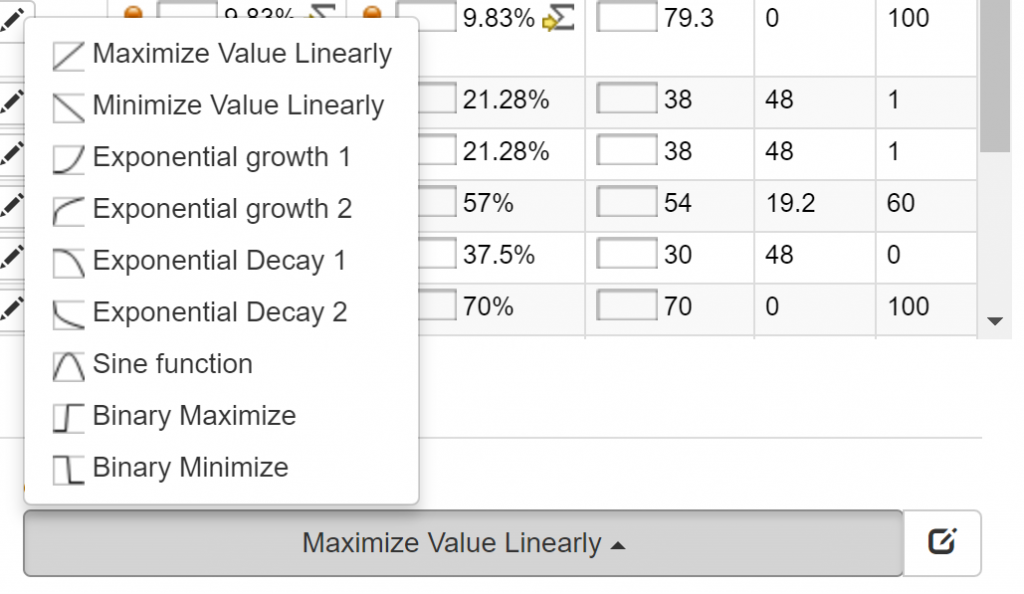
The opposite case – linear minimization:
With a linear growth of the “value,” the performance decreases linearly.
Example: “Average email response time.” To increase the performance, we need to respond faster (lower value of the “response time” indicator).
In this case, the linear performance function will look like this:
- Performance (Value), % = ((Max – Value) / (Max – Min)) * 100%
Calculation Examples.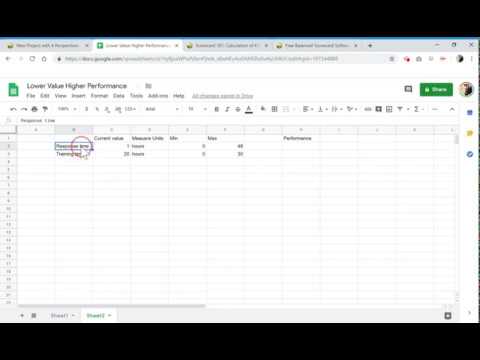
There might be other performance functions as well.
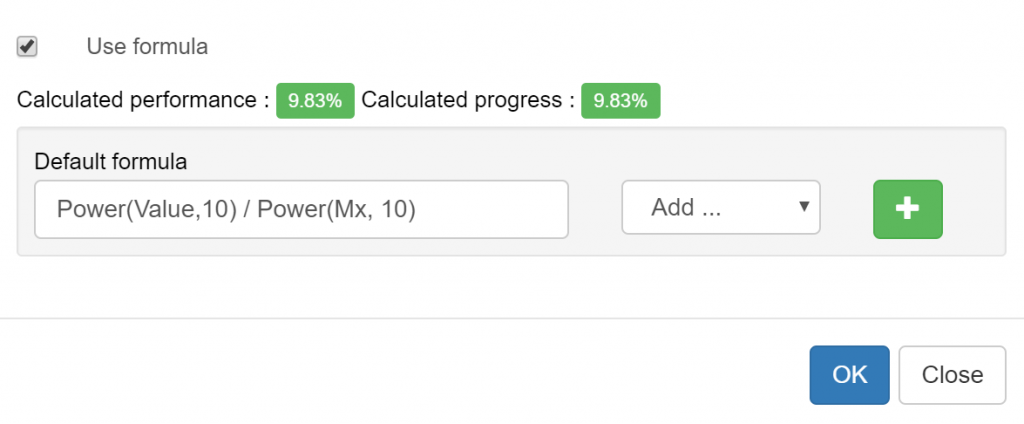
For example, the performance might grow very slowly in the beginning but then increase rapidly. The performance function, in this case, might be something like this:
- Performance (Value), % = Power(Value,10) / Power(Max, 10)
Managing these formulas might sound a little bit complicated if you’re using MS Excel or similar software, but a professional scorecard software like BSC Designer will automate these tasks for you.
The final choice of the tool depends on your challenges. In the Spreadsheet vs. Specialized Scorecard Software article, we analyzed the PROs and CONs of the most popular approaches.
Progress vs. Performance
In the business world, the terms “progress” and “performance” are often used interchangeably. You might hear a dialog like this:
- John: We need to measure the performance of our employees?
- Mary: How are we going to do this?
- John: Well, let’s track their progress with the current tasks.
Merriam-Webster dictionary gives us these definitions (I’m taking the business context only):
- Progress: the process of improving or developing something over a period of time.
- Performance: a: the execution of an action; b: something accomplished.
BusinessDictionary.com is more precise in the business context:
- Performance: The accomplishment of a given task measured against preset known standards of accuracy.
So, what’s the difference?
When we are talking about achieving a certain market share, do we talk about a company’s progress or its performance?
- On the one hand, if the market share was increased over a period of a quarter, then according to the definition, it is progress;
- On the other hand, a company’s market share compared to some historical data also is an indicator of a company’s performance!
Performance can exist without progress:
- A company’s sales team might have a high performance closing 20 deals per week but compared to the last year, they have not made any progress.
Progress can exist without performance:
- Take any preparation stage of any project. According to the project management software, there is some progress, but the performance is still zero as no tangible results were produced yet.
Although in many cases, the value of performance and progress are the same, it makes sense to track both of them.
Calculating the Progress
Sometimes, it is necessary to focus attention on a very specific part of the performance interval, which is important for the current business task.
For example, the support center of a company uses an “Average email response time” indicator.
The current measurement scale is 1 hours. Currently, a company answers most questions within 48 hours. According to these numbers, the company performance is at a good level.
Let’s continue with a case. Imagine that a company’s managers decided to follow take-aways of the recent studies:
“Queries from online prospects that were answered within an hour were seven times more likely to generate a qualified lead.”
Managers decided to decrease the average email response time.
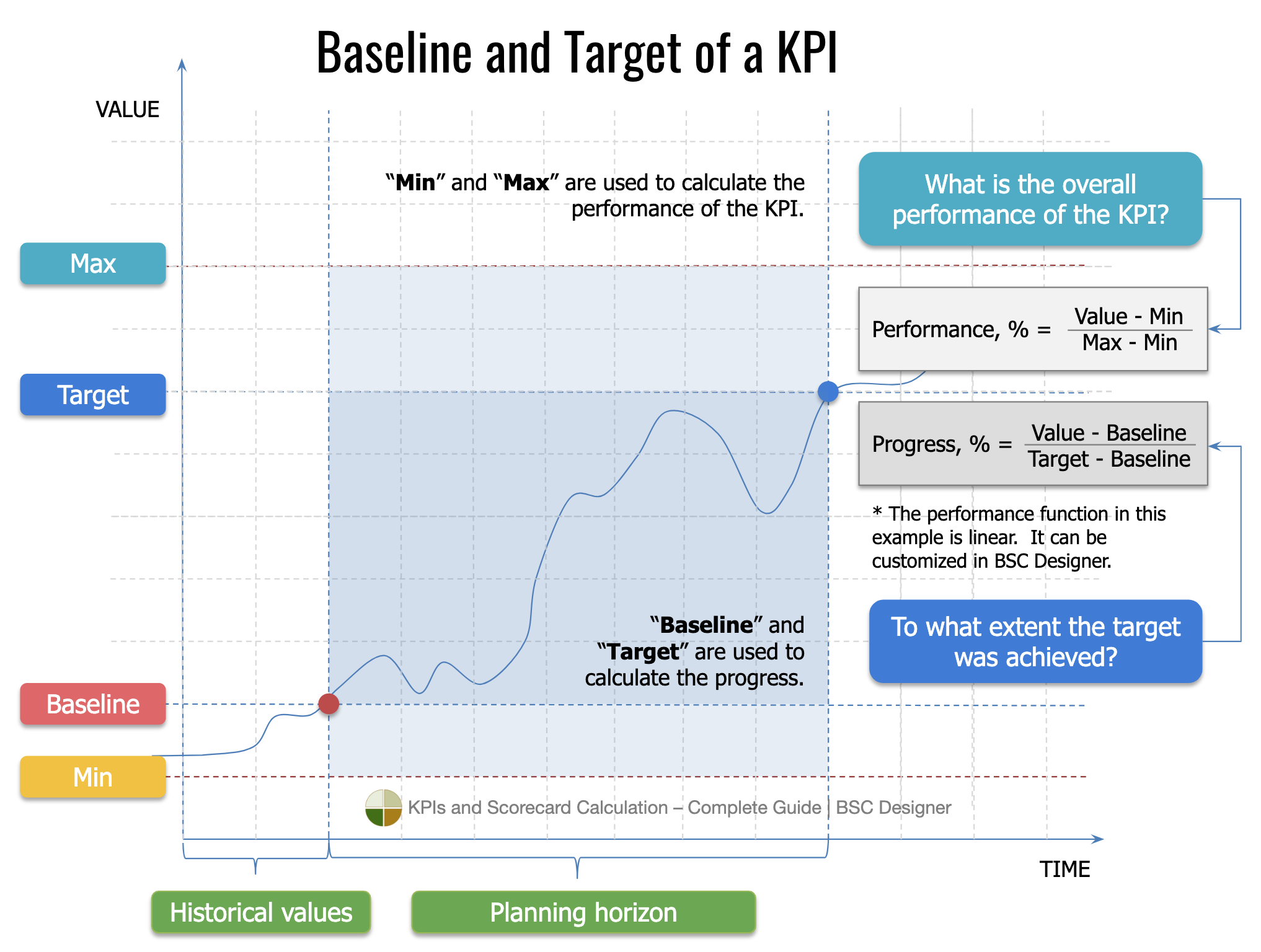
For their planning horizon, they have a starting point (baseline), which is 48 hours, and they have a destination point (target) which is 1 hour.
The problem is that on the current measurement scale 1, their hard job of decreasing response time from 48 hours to 1 hour will not be seen well:
For this purpose, one could introduce a progress function, which will be very similar to the performance.
The “progress” will use the same mathematical function as was used for the performance function, but it will use it on a different scale.
Compare:
- Performance (Value), % = ((Max – Value) / (Max – Min)) * 100%
- Progress (Value), % = ((Value – Baseline) / (Target – Baseline)) * 100%
Both functions indicate that the performance will increase with the decrease of the response time.
What will happen to the performance and progress when a company has a response time equal to 38 hours? Let’s calculate:
- Performance (38 hours), % = ((72 – 38) / (72 – 0)) * 100% = 47%
- Progress (38 hours), % = ((38 – 48) / (1 – 48)) * 100% = 21%
As you can see, we need both:
Performance and progress functions as they actually tell us a different story about an evaluation process.
Performance
“Min” and “Max” are used to calculate the performance of the KPI.
The performance answers the question:
“What is the overall success according to the KPI?”
Progress
“Baseline” and “Target” are used to calculate the progress.
The progress answers the question:
“To what extent was the target achieved?”
The progress will be 100% (we need to define this point manually to avoid division by zero), and the performance will be 98%.
In terms of the “performance” there is space for a further 2% improvement, but in terms of the “progress” (that reflects a business sense), the target was achieved.
Calculating Scorecard: The Weight of the Metric
Before we mentioned the need to specify the relative importance of a KPI (its weight).
Weight of a metric shows its relevant importance compared to other metrics in the same branch of hierarchical scorecard.
For example, a support center has two KPIs:
- “Average email response time,” hours
- “First contact resolution rate,” %
A company can make “Average email response time” equal to 10 minutes, but this will not make customers happy, as the “First contact resolution rate” will be very low.
A good response time is important, but what is more important is the high quality of the answers.
To reflect this idea, we need to assign weight to the indicator:
- “Average email response time,” hours; weight = 4
- “First contact resolution rate,” %; weight = 6
Now we know that “First contact resolution rate” is more important than “Average email response time.” To simplify future calculations, we will define weight on a scale from 1 to 10. If you are using BSC Designer software, you can use any scale – the software will adjust calculations automatically.
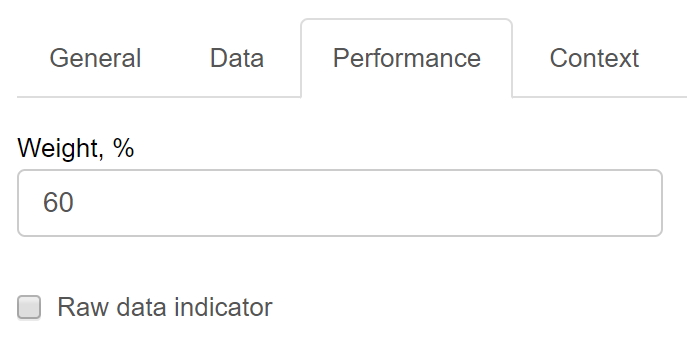
Weight setting for “First contact resolution rate” indicator in BSC Designer Online.
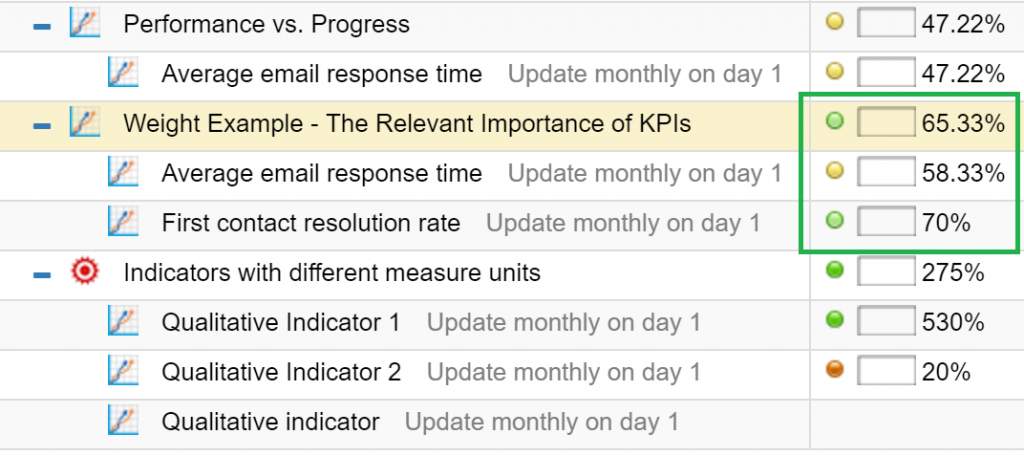
“Response time” is in the yellow zone, but “response quality” is in the green zone (it has higher weight); the performance of the goal is in the green zone.
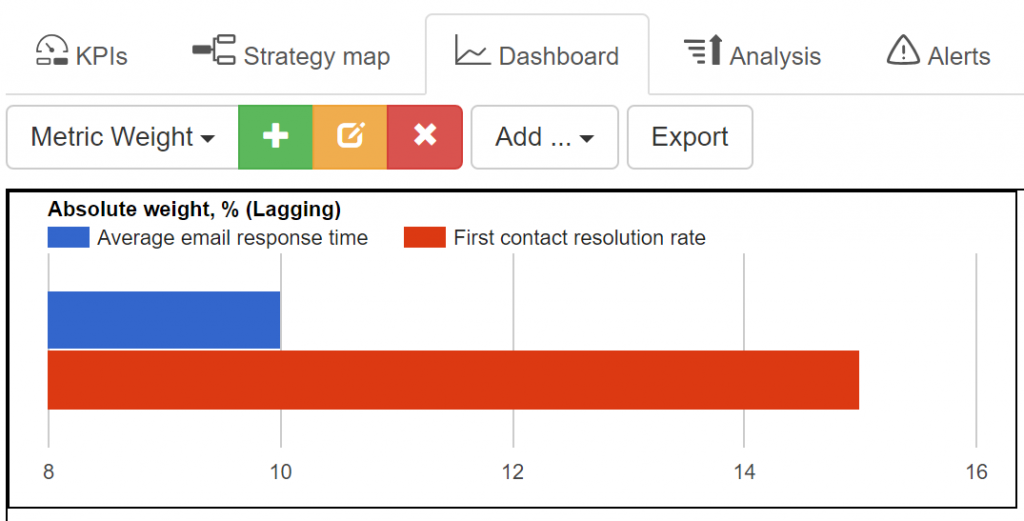
An absolute weight diagram for two indicators.
Calculation Examples.
Calculating the Total Performance
The performance of a container can be calculated by taking into account the performance values of each indicator inside and their weights.
In the same way, the total performance of the scorecard can be calculated. It will incorporate the performance of all containers taking into account their relative weights.
The Business Meaning of the “total index”
Below, you will find formulas that help to do all of these calculations.
Before talking about mathematics, I’d like to discuss the business sense of calculating this total performance value.
Actually, it is still disputable:
- Some say that they need to have “a number” that is supposed to reflect the current performance of the company
- An opposite argument is that this aggregated index will be too complex to possibly give any meaningful information
It might be hard to find the business meaning of the total scorecard index, but for sure, it makes sense to calculate the performance of specific containers.
As in the example above, the performance level of the “Customer support” container has two weighted indicators: “Average email response time” and “First contact resolution rate” that will actually show if customer support does a good job balancing response quality and response time.
How the Scorecard Performance is Calculated
Now, let me show the math that stands behind the calculation of the total performance.
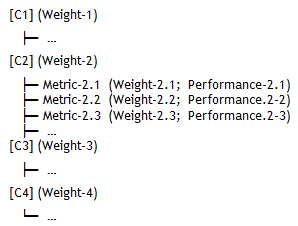
Here we have the structure of the scorecard where C1..4 – are containers. Metric-i,j are our indicators together with their weight and performance values:
Let’s convert this into a different notation:
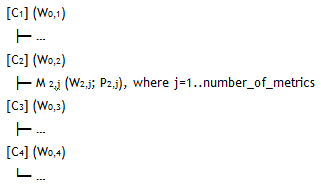
We had our weight on a scale 1..10, so before moving ahead, we need to calculate a normalized weight:

The total performance value for the selected category is to be calculated as:

Where Ni is the number of metrics on i-level; NWi,j – is a normalized weight of j-metric on i-level; NSi,j – is a performance of j-metric on i-level.
To calculate the total performance within all categories, it’s necessary to summarize performance values for all levels:

Where M is a number of categories. The final formula for the total performance index of the scorecard will be:

These calculations are simple if you don’t have subcontainers in your scorecard. If you had subcontainers, the weight of these subcontainers should be taken into account in a similar way. Professional scorecard software like BSC Designer will automate these calculations so that you can focus on the business side.
Calculations for Leading and Lagging Indicators
Before, we have discussed the difference between leading and lagging indicators. Here, I’d like to focus on the topic of calculations.
To explain how the performance is calculated and transferred in this case, I will need to use an example. Let’s assume that we have a “Improve customer service” goal that is linked to “Create video tutorials” and “Train support agents” goals.
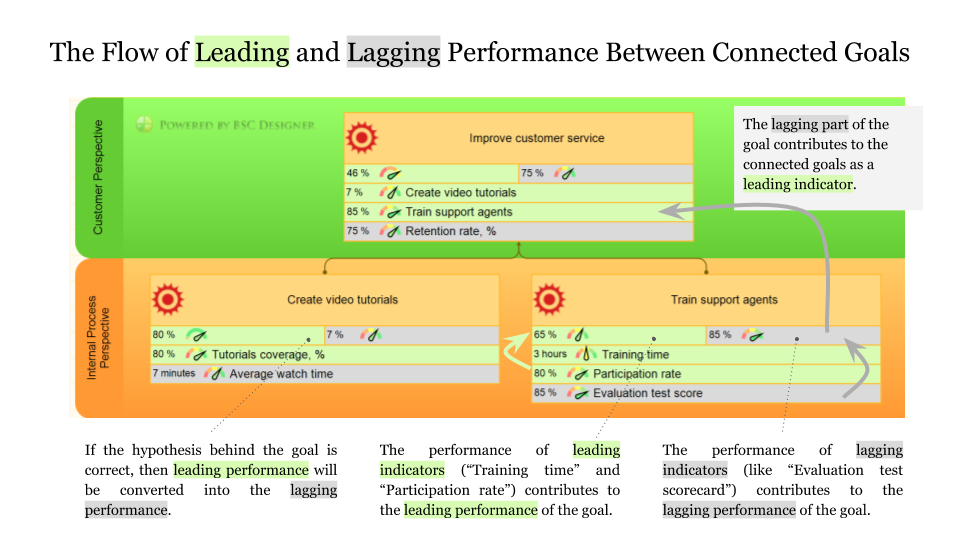
Leading vs. Lagging Metrics.The “create video tutorials” goal is measured by:
- Leading indicator “Tutorials coverage, %” that will show the percent of the topics covered by the video tutorials.
- Another indicator is “Average watch time” – a basic indicator to estimate the engagement rate of the users who watch video tutorials.
The “train support agents” goal is measured by:
- Leading indicator “training time” that shows time invested, and another leading indicator “participation rate” that shows the coverage of the training.
- Lagging indicator in this case can be “evaluation test score” – it helps to get an idea about the effectiveness of the training.
We can introduce some random values and calculate leading and lagging performance for the goals.
- The leading performance will be calculated using leading indicators only, and respectively.
- The lagging performance will be calculated using lagging indicators aligned with the selected goal.
From the business point of view:
- Leading performance tells us a story about our efforts (if the trainer invested enough time in training and enough support agents have participated), while
- Lagging performance helps to validate our achievements in the context of this goal (did support agents improve in their evaluation tests?).
Do these goals transfer leading performance, lagging performance or both? They only directly transfer lagging performance! In other words, the output of “Create video tutorials” and “Train support agents” become an input for “Improve customer service” goal.
What happened with their leading performance? Wasn’t it lost? As mentioned before, it helped us to validate our efforts, and if the hypothesis of the business goal (we are talking about the scientific approach) was correct, it will be converted into the lagging performance.
For example, for the goal “create video tutorials,” our hypothesis was that by explaining 80% of the product’s features in the video tutorials (as measured by leading metric “Tutorials coverage”), we will achieve a certain engagement rate (measured as “Average watch time”).
If our hypothesis was correct, we would see the confirmation of this hypothesis on the dashboard diagram where both metrics are visualized.
Answering the question about leading performance, it is correct to say that leading performance is processed into the lagging performance in a case when the hypothesis that stands behind the goal proved to be true.
Getting back to our example. The leading performance of the goal, “Improve customer service” is now influenced by the performance of two goals, “Create video tutorials” and “Train support agents.” To measure lagging performance, we will need to come up with some indicators, for example “Retention rate, %.”
Example of the Scorecard Calculation in MS Excel
The general problem with scorecards in Excel is that when your project gets updated; it will be hard to maintain a spreadsheet.
Check out an article on this topic if you are interested in the details.
What is your experience with scorecards? Do you think it is only useful as an academic exercise? What tasks do a scorecard help to solve in your business?
What's next?- Follow our
 Strategy Implementation System to align stakeholders, strategic ambitions, and business frameworks into a comprehensive strategy.
 - Automate strategic planning with BSC Designer by organizing goals, initiatives, risks, and KPIs into scorecards.
 Strategy Implementation System
More About Strategic Planning

 CEO | Author | Speaker
BSC Designer is strategy execution software that enhances strategy formulation and execution through tangible KPIs. Our proprietary strategy implementation system reflects our practical experience in the strategy domain.
wow, I’m very impressed after read your website, can you offering about KPI and Balanced score Card apps, thank you