Import Data from External Database with SQL Query
Learn how to power performance metrics on the scorecard by connecting to a database using SQL indicators.
Creating SQL Indicator
- Go to the KPI tab
- Select any indicator
- Switch to the Data tab below
- Click the
 KPI Data Source button
 - Select Link to SQL Database
- Select a database with local or web access
Creating Connection String
- Click the Build button to create a connection string
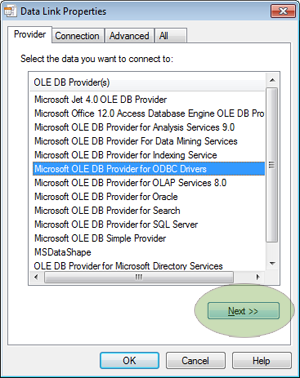
- Select a data source (available data sources depend on the ADO drivers installed), for example ODBC drivers:
- Click Next
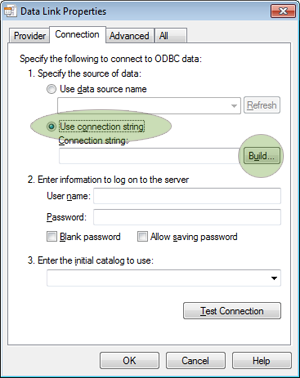
- Switch to Use connection string in Specify the source of data section
- Click the Build button
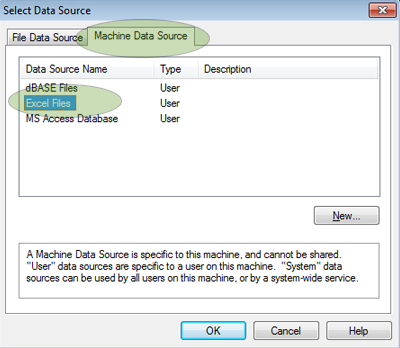
- Go to the Machine data source tab
- Select data source (for example, "Excel Files")
- Double-click on it
- Select an MS Excel file, click OK
- Click the Test button
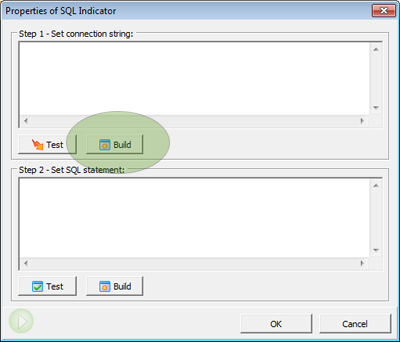
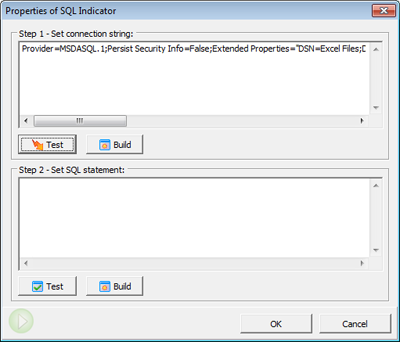
Creating SQL Query
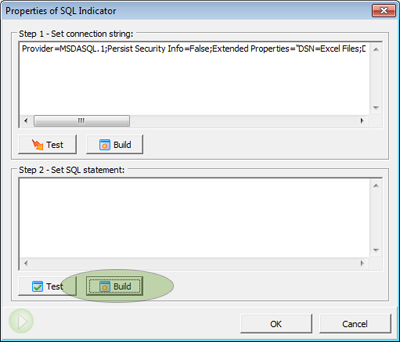
- Click the Build button for SQL statement
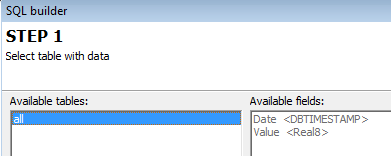
- Select a table and click the Next button
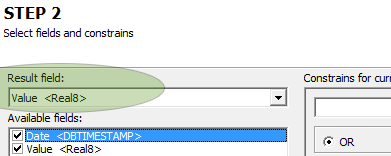
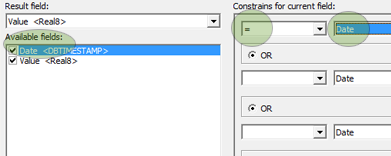
- Select a column from the Result field drop list
- Select "Date" from the available field list, select "=" as a condition, and "Date" in the drop list
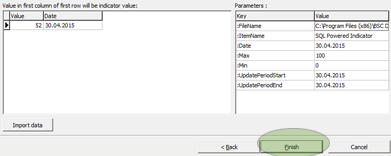
- Click "Finish" to apply changes
SELECT `Value`,`Date`
FROM `all`
WHERE
 ( `Date` = :Date )
Parameters Supported in Request
- :Date - the date selected in BSC Designer
- :UpdatePeriodStart - the first date of the current update interval
- :UpdatePeriodEnd - the last date of the current update interval
- :ItemName - the name of indicator
- :Max - MAX value of indicator
- :Min - MIN value of indicator
- :FileName - the file name of the current scorecard
Getting Aggregated Values from a Data Source
- Specify update interval for an indicator
- Replace :Date parameter in SQL query with :UpdatePeriodStart and :UpdatePeriodEnd parameters
SELECT sum(Value) as AggregatedValue,`Date`
FROM `all`
WHERE
 ( `Date` BETWEEN :UpdatePeriodStart and :UpdatePeriodEnd )
Additional ideas
- Use the File > Document Properties > SQL tab to find additional settings for SQL indicators
- Find the Data via SQL scorecard in the samples folder as an example of SQL indicator setup